
Data science insights while you scrapping a platform for data science practice.

Introduction.
This time I will explain (with full code examples) how to create a web scraper in eight steps using the Selenium Python framework.
I will take a recipe site https://www.simplyrecipes.com/. The subject of this post can be a base part of any Data Science project: data collection.
So I chose this website because it just contains the data I need for my NLP adjective. Additionally, this tutorial in Step 3, Step 5, and Step 7 will cover some specific issues (selenium exceptions) which can arise during web crawling. Therefore you won’t need to go over Stackoverflow after implementing this project code.
Definitions.
Web scraping often called web crawling or web spidering, or “programmatically going over a collection of web pages and extracting data”. It is a highly beneficial practice for any data scientist.
With a web scraper, you can mining data about a set of products, get a large corpus of text for NLP tasks, get any quantitative data for e-commerce analysis or collect a large picture set for computer vision purposes. You even can get data from a site without an official API.
Seleniumis a portable framework for testing web applications. It automates web browsers, and you can use it to carry out actions in browser environments on your behalf. Selenium also comes with a parser and can send web requests. You can pull out data from an HTML document as you do with Javascript DOM API. As usual, people use Selenium if they require data that can only be available when Javascript files are loaded.
Step 1. Installation.
Selenium documentation offers to install packages in several different ways. In my case, I apply installation on virtual environments in Pycharm for Ubuntu OS.
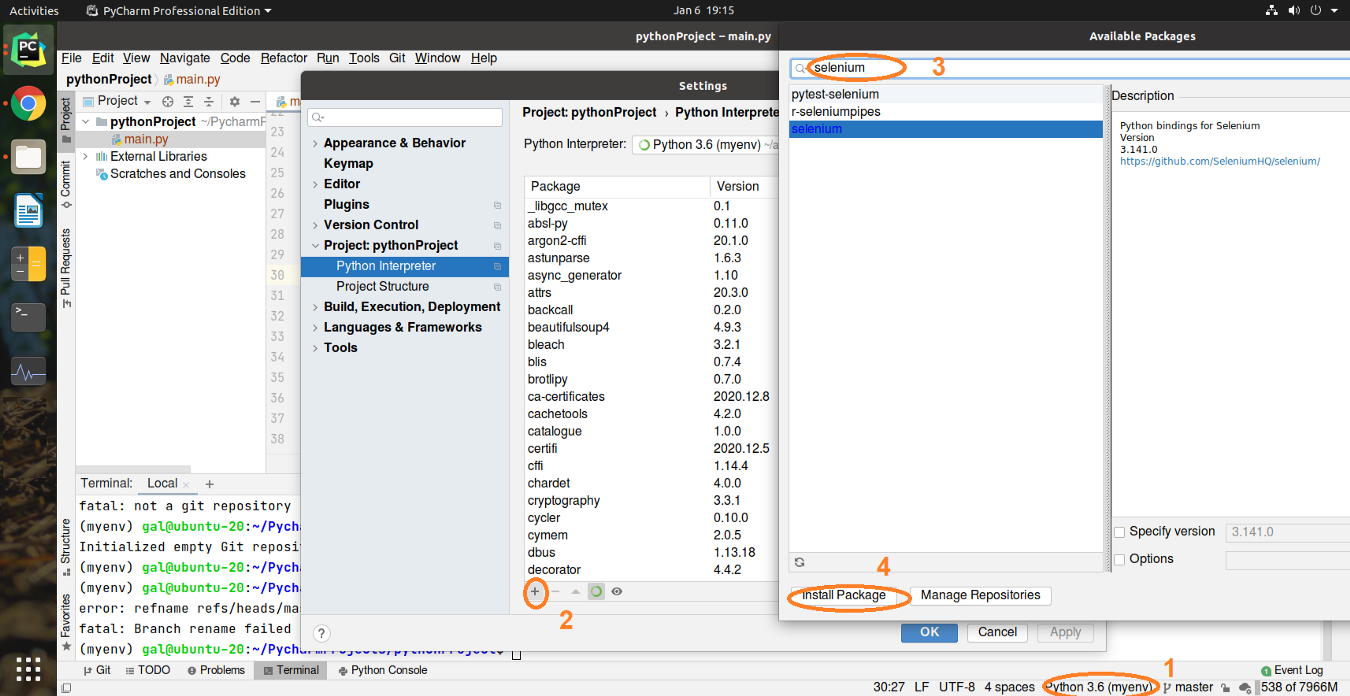
Using pip, you can install selenium like this:

After you installed Selenium, it is mandatory to download a driver.
Selenium requires a driver to interface with the chosen browser. Firefox, for example, requires a geckodriver. It should be in your PATH, e. g., place it in /usr/bin or /usr/local/bin.
In this tutorial, I take a Chrome driver version 87 for Ubuntu OS.
Now we have installed the package and unpacked a driver in the project directory. We can go to the web page where the data is. Let’s explore the HTML structure.
Step 2. Explore HTML structure of the page.
Here are 131 pages with 26 links to recipe articles per page. It is over three thousand URLs we can collect. We have to remember that the last page is not full. Some of the links don’t lead to the recipe information. How to manage this situation? You will see it in Step 6. ‘Save all collected URLs into a file’.
So, what do we have in the HTML of this page for recipe link collecting?

If one place will be problematic — there is additional to try. And what about the page navigation?

With button “Next” I change the page automatically via Python.
Step 3. Get the connection with web page.
Here the first code example. It is a function to create a chromedriver for web page connection. I made it functionally representation for more convenient use.https://galinadottechdotblog.wordpress.com/media/ed7d3c9d9dcf85c5ad0efb5cc8bf7d58The function to create a connection with web page
Very important to put a timeout after every connection request. Otherwise, you will be blocked, and your program won’t be working.
It can happen if you have a poor internet connection or the page has many pop-ups, or the page is very loaded and heavy. In these situations, you can catch selenium.TimeoutException. To avoid this, I used the secondary try to connect. The program stops only if the second try failed.
Step 4. Collect the recipe links from one page.
After I created a chromedriver, it’s time to get links from the page. There are several popular ways to do it with Selenium:
- using XPath
- using CSS selector
- by class, id, tag
- partial search with CSS or XPath
- etc.
I made this part with XPath search:https://galinadottechdotblog.wordpress.com/media/2982a3edbafb39484e2526c25d63f0efHow To collect links for each recipe from one page using selenium python
This function receives a chrome driver object as a parameter. The first step is to create an empty list for link collection (line 7). Second — to go into a range of links count (we remember that this website contains 26 links per page) (line 9) and iterate by HTML object using this index in XPath (lines11–12). In the end, append each link into a list(line 15), which was created at the beginning of this function.
There are three simple steps on how to get an XPath of the element on the web page:
1. Go to the web page and press F12 on your keyboard.
2.Find that element that you want to get and click on it right mouse button in the HTML.
3. Copy XPath and paste it into your function as an argument for search.

It is realy not hard to do with developer mode (F12).
Step 5. Navigate page by page to collect links.
Now I can create a function for a global walk page by page. Look at the code below:https://galinadottechdotblog.wordpress.com/media/b401bd37a3b7d8a4375adf6e2c2a8105Function to collect all links page by page using selenium python
Again, at first, create an empty list (line 11). The function receives a chromedriver as an argument and the number of pages it should walk.
Then we go into for-loop in a range of page numbers (line 12). We still remember that the website has 131 pages with recipe URLs.
In lines 15–16 call a previous function to get links from one page and store the result into the list.
In lines 19–22 look for a “Next” button to click”. If there are no more pages, you will get a message about it (lines 24–26).
The function returns list [list[str]]. Each inner list[str] is an URL list from each page we walked (line 27).
Step 6. Save all collected URLs into a file.
In this step, we have three constants:
- path to the file where will be stored URLs with recipes (line 2)
- filename/path to the file where will be stored links we got without recipes (on each page we walk, there are some links with articles and reviews, not with recipes) (line 3)
- string pattern (line 4) to differentiate these two URL categories.
https://galinadottechdotblog.wordpress.com/media/65383b7adb3ed9ec2a14dfbba49d49e3Function to save gotten links into two files: file with links to recipes and file with links which have no recipe
The function gets a file name as a parameter where we will store correct links. This time we create a chromedriver (line 14).
Call the previous function to collect the URL and write down the result into a variable (line 17).
In lines 20–29, we are iterate over elements in the resulting variable. Open two files in “write” mode and check with the pattern in which file we should write the element. Writing down a line and close both files.
Ok, this is already the most part we did. There is Left only to collect data from web pages.
Step 7. Collect the recipe data: ingrediens and instructions.
Look for the correct place in the HTML for recipe ingredients and recipe instruction. Use the same way as in steps 2 and 4: applying XPath search plus search by tag name.

Now about the function below. It receives a recipe page link as a parameter. In lines 14–16, we define a dictionary and two lists (to collect our data).
In line 23 call the HTML element search. It should return us a selenium object. Use it to continue the search by tag name in line 32.https://galinadottechdotblog.wordpress.com/media/3a98fb1ec968672260039b052861eae9Function To collect recipe ingredients and instructions from one page into dictionary
So what happens in between these two steps: in lines 25–30?”. It predicts falling out of the program because of alerts (in our case, ReCaptcha).
Sometimes alerts are not displayed immediately. When you try to switch to it before it is visible, you get NoAlertPresentException. To avoid this just wait for the alert to appear. The code in lines 25–30 handles this scenario.
Line 34: Somewhere in the middle of the download, suddenly, I realized that not all of the ingredients are collected. Some of them represented as an empty list. After the HTML check, I saw another div element where the data occurs on the page. Thus, line 34 checks the “is empty” condition for the div element. If the search_by_tag_name returns an empty list, the program goes to lines 35–36. It should see the same id in the previous div and collect the data. Then iterate over the search result and append each item into a list (lines 37–38).
Instructions collecting is different from ingredients collecting. In lines 41–42, we are searching by XPath. In line 43, I apply a search by tag name. Here no check for alerts (what a relief) as with ingredients. However, there are pictures in instruction with the same tag name as text data! Therefore I examine “is paragraph text, not an empty string” (line 44) and only after appending text into a list (line 45). Otherwise, the program goes to the next paragraph element (lines 48–49).
When all search requests and iterations are over, chromedriver should be closed (line 50). Now you can update our dictionary with collected data(53–54) and send it to the return statement (line 56)
Additionally, I wrote a small printing function to monitor what kind of data is loading. It gives console output: the number of page link in a .txt file, link itself, and collected text data in JSON-like representation (about ingredients and instructions).https://galinadottechdotblog.wordpress.com/media/3c6441e57cb6262450b686eb386639d4Function for console output to monitor the downloading data
Step 8. Run all in main.py
The last part of this tutorial — to run all from one place, save collected data into a CSV file.
I chose CSV because Python allows us to write line by line into this file format. Therefore, if you will stop the scraper in the middle and continue from the same place after a break, it will work. You won’t lose the data.
The only thing you have to change to continue download:
- Comment lines 17 and 18 because they are collecting links from the website. You already have them in a .txt file;
- And change the start parameter for np.arrange() in line 23 to restart the download from the point you had stopped. The monitoring function will give you information about the last link your scraper used.
https://galinadottechdotblog.wordpress.com/media/db1044f64f8cd0c84ddbf06f80d6b2e4To run scraping program from one place and save the data into csv file
The main open a .txt file with all URLs to read lines (lines 21–22). Then collects the data from the chosen page (line 26), store collected data into a list, and write it as a line into a CSV file.
That’s all. In several hours you will have a great set with a shape of 2565 rows × 2 columns. There left only to preprocess the data: remove duplicates, split into paragraphs, remove punctuation, turn into number sequences, and train the model.
Conclusions.
This tutorial should be enough to learn how to build a scraper with Selenium and collect the data from any website. To apply this code to another website, only change constants for URL-pattern and XPaths in all crawling functions.
The whole code you may found on Github.
The original story on medium public Analytics Vidhya

 A technical blog about Data Science